Kids are spending more and more time at the computer — schoolwork, games, chatting. A parental control program helps you keep a gentle eye on this: it shows what your child does on the PC and helps you set reasonable boundaries. Let's look at what these programs are, what they can do and how to pick the right one.
- Parental control programs come in two kinds: built-in (Windows) and third-party.
- Core features: time limits, website filtering, reports, screenshots, app history.
- When choosing, look at the feature set, ease of use, a proper dashboard and an honest data policy.
- Control works better when it's open — agreements beat outright bans.
Types of parental control programs
Broadly, they split into two groups. Built-in — for example, Microsoft Family Safety in Windows: free, with basic limits and filters, but no screenshots or a detailed log. Third-party — separate apps that give you more: a detailed activity history, screen captures, time spent in apps and alerts.
What a good control program can do
- Limits and schedules. Caps on computer time by day and hour.
- App and website history. What your child opened and how long they spent there.
- Screen captures. A clear picture of what was happening, with day-by-day history.
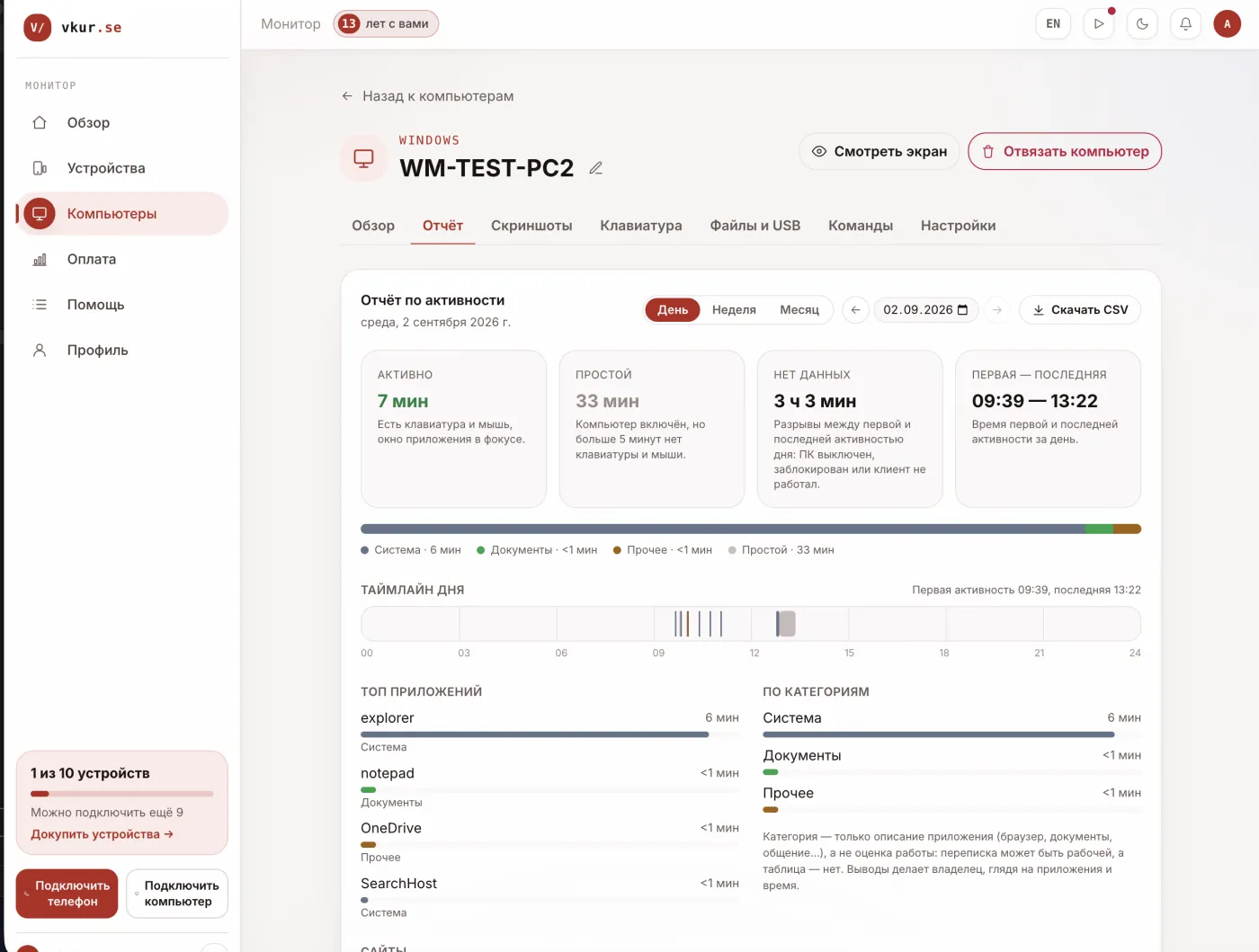
- Activity reports. A summary of active time and idle periods for the day.
- A single dashboard. Everything visible from a phone or another computer, including alongside your other kids' devices.
What to look at when choosing
- Feature set. Are limits enough, or do you need screenshots and a log.
- Simplicity. Clear setup and a dashboard without needless complexity.
- One place for all devices. It's handy when your kids' phones and computers sit in a single list.
- An honest data policy. Data goes to your dashboard, not to third parties; the vendor is known.
- Load on the PC. The program should run in the background and not slow the computer down.
Example: VkurSe for Windows
VkurSe for Windows covers these needs: in your personal dashboard you can see day-by-day screen captures, program and website history, typed text, activity and idle time. Your kids' computers and phones show up in a single device list, so all your home oversight stays in one place. It installs in a minute using a code from the dashboard.
How to set up control
- Open the “Computers” section in the dashboard and click “Connect computer”.
- Install the program on your child's PC and enter the pairing code.
- Set a collection schedule and watch the activity in the dashboard.
Frequently asked questions
Which parental control program is best?
It depends on the task. For basic limits, the built-in Family Safety is enough; for the full picture (screenshots, a log) people choose a third-party program like VkurSe for Windows.
Is it legal?
Yes — on your own minor child's device, parental control is legal. Only install these programs on your family's devices.
Conclusion
A good parental control program isn't about bans — it's about understanding and reasonable boundaries. Decide what matters more, limits or the full activity picture, and choose to fit the task. VkurSe for Windows is a good fit when you need to see screenshots, app history and keep all your kids' devices in one dashboard.
VkurSe for Windows
Screenshots, programs, websites and computer activity in one dashboard. Phones and PCs together. First 24 hours free.
Try it freeCreate your dashboard — the Windows installer will be in the “Computers” section