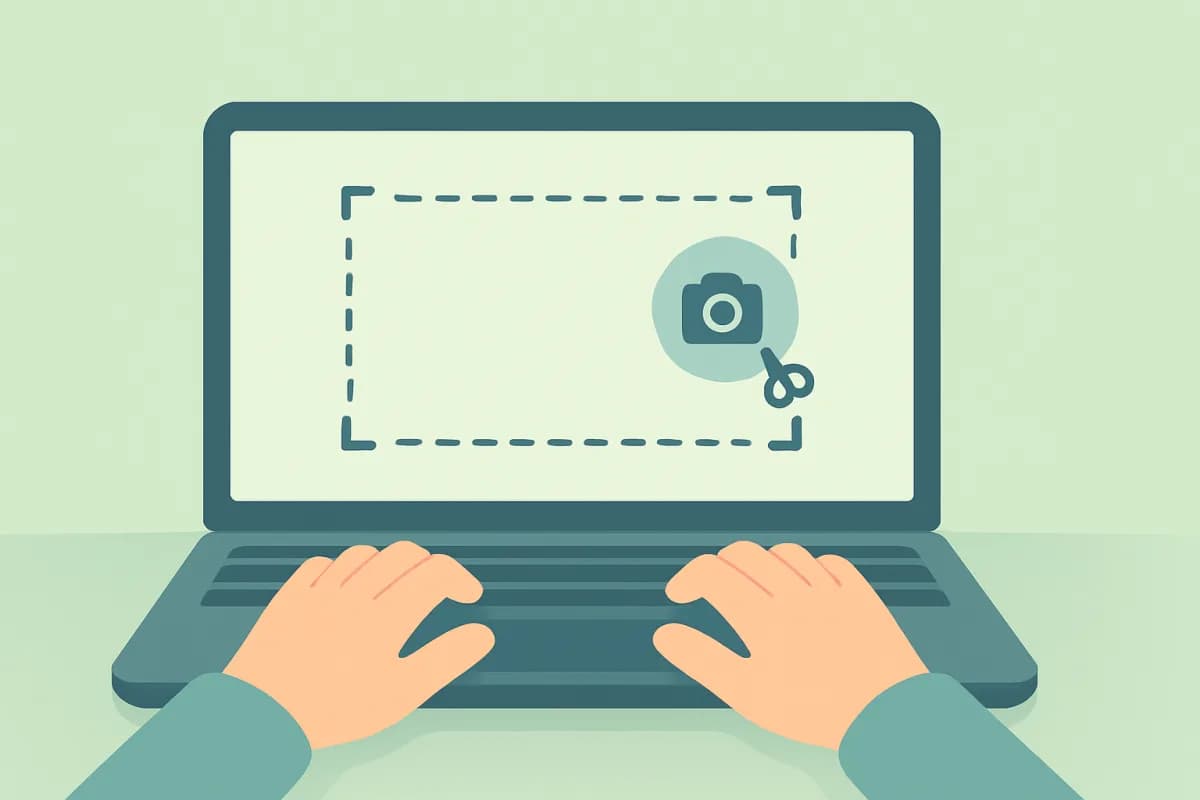
A screenshot is the fastest way to capture what is happening on the computer: save a chat, show an error to support, make a note from a document. And if screenshots are taken regularly and automatically, they turn into a handy activity log, for example to understand what a child is doing at the home PC or how work is going on a company computer.
Let's go through all the working ways to take a screenshot in Windows, from hotkeys to automatic scheduled snapshots.
- The PrintScreen key copies the whole screen to the clipboard, Alt+PrintScreen copies only the active window.
- Win+Shift+S launches "Snip & Sketch" and lets you select any area.
- Win+PrintScreen immediately saves the snapshot to the "Pictures → Screenshots" folder.
- For regular monitoring, automatic screenshots are more convenient, taken by a dedicated program on a schedule.
Hotkeys for a screenshot in Windows
- PrintScreen (PrtScn) copies the whole screen to the clipboard. Then paste (Ctrl+V) into Paint, Word or a chat.
- Alt + PrintScreen captures only the active window.
- Win + PrintScreen saves the file straight to "Pictures → Screenshots".
- Win + Shift + S opens the "Snip & Sketch" panel: you can select a rectangle, a window or the whole screen, and the snapshot goes to the clipboard and to a notification for editing.
The Snipping Tool app
Windows 10 and 11 have a built-in Snipping Tool app. Find it through the search in the Start menu. It can capture an area, a window or the whole screen, add a delay before the snapshot, annotate and crop the result. This is the most flexible built-in way when you need one neat screenshot.
Where screenshots are saved
Snapshots taken with Win+PrintScreen are stored in the "Pictures → Screenshots" folder. Snapshots from the clipboard have to be pasted and saved manually. The Snipping Tool lets you choose a folder when saving.
Automatic screenshots: when one snapshot is not enough
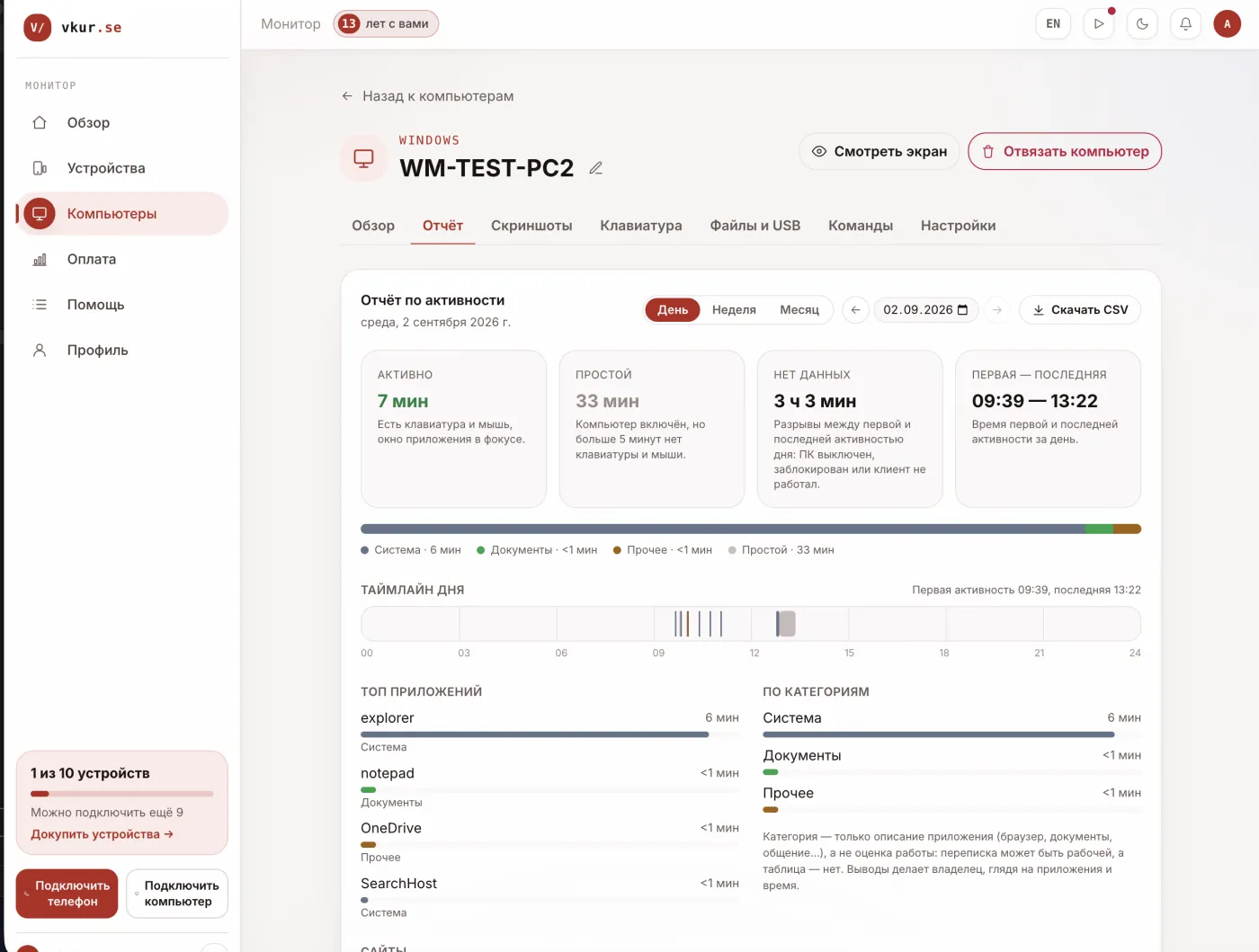
Manual screenshots are good for one-off tasks. But if you need to understand the picture over a day, what was done at the computer, which programs and sites were opened, automatic screenshots are more convenient: a program takes screen snapshots at set intervals on its own and stores them in a history by day.
This is how VkurSe for Windows works, for example. You install the app on the computer, and in the personal dashboard you see screen screenshots with a history by day, and alongside them which programs were used and for how long and which sites were opened. This is handy for parental oversight of a child's home PC or for monitoring work on a company computer (employees are notified in that case).
How to turn on automatic screenshots
- Install the program on the computer you need and link it with the code from the dashboard.
- In the settings, set the screenshot interval and the collection schedule.
- Open the dashboard from your phone or another PC, the snapshots will accumulate in the history.
Frequently asked questions
Why doesn't PrintScreen work?
On some laptops you need to press Fn + PrintScreen. The key may also have been intercepted by a third-party program, check whether the snapshot pastes into Paint.
How do I take a screenshot of a long scrolling page?
Built-in tools capture only the visible part. For long pages, use the browser's screenshot feature or a separate program.
Can screenshots be taken automatically and unnoticed by the child?
Technically yes, but it is better to agree openly. For a family this is care and oversight, not secret surveillance; install programs only on your own family's devices.
Conclusion
For a one-off snapshot, hotkeys or the Snipping Tool are enough. But if you need a constant log of what happens on the computer, turn on automatic screenshots through a separate program, for example VkurSe for Windows, where snapshots and activity are gathered into a convenient dashboard.
VkurSe for Windows
Screenshots, apps, websites and computer activity in one dashboard. Phones and PCs together. First day free.
Try it freeCreate your dashboard — the Windows installer will be in the “Computers” section