
A single shot is easy with the built-in Windows tools, but when you need screenshots regularly and automatically -- to see how a workday unfolds or what a child is doing at the PC -- dedicated desktop screenshot software is more convenient. Let's look at the types available and how to set up automatic captures.
- Built-in tools take single shots; software takes automatic series.
- Auto-screenshots are collected into a day-by-day history in the dashboard.
- Useful for work oversight (with notice) and parental supervision.
- The capture interval and schedule are configurable.
Built-in tools versus dedicated software
Windows has Snipping Tool and hotkeys -- great for one-off shots. But if you need a continuous screen log, manual shots won't cut it. Dedicated software takes automatic screenshots at set intervals and files them into a history you can easily go back to.
What auto-screenshot software can do
- Screen captures at a set interval.
- A day-by-day history in your personal dashboard.
- Screenshots linked to apps and time.
- A capture schedule (working hours only, for example).
How to set up auto-screenshots
- Install the software on the computer you need and link it with a code from the dashboard.
- Set the screenshot interval and schedule.
- Open the dashboard from any device -- the shots build up in the history.
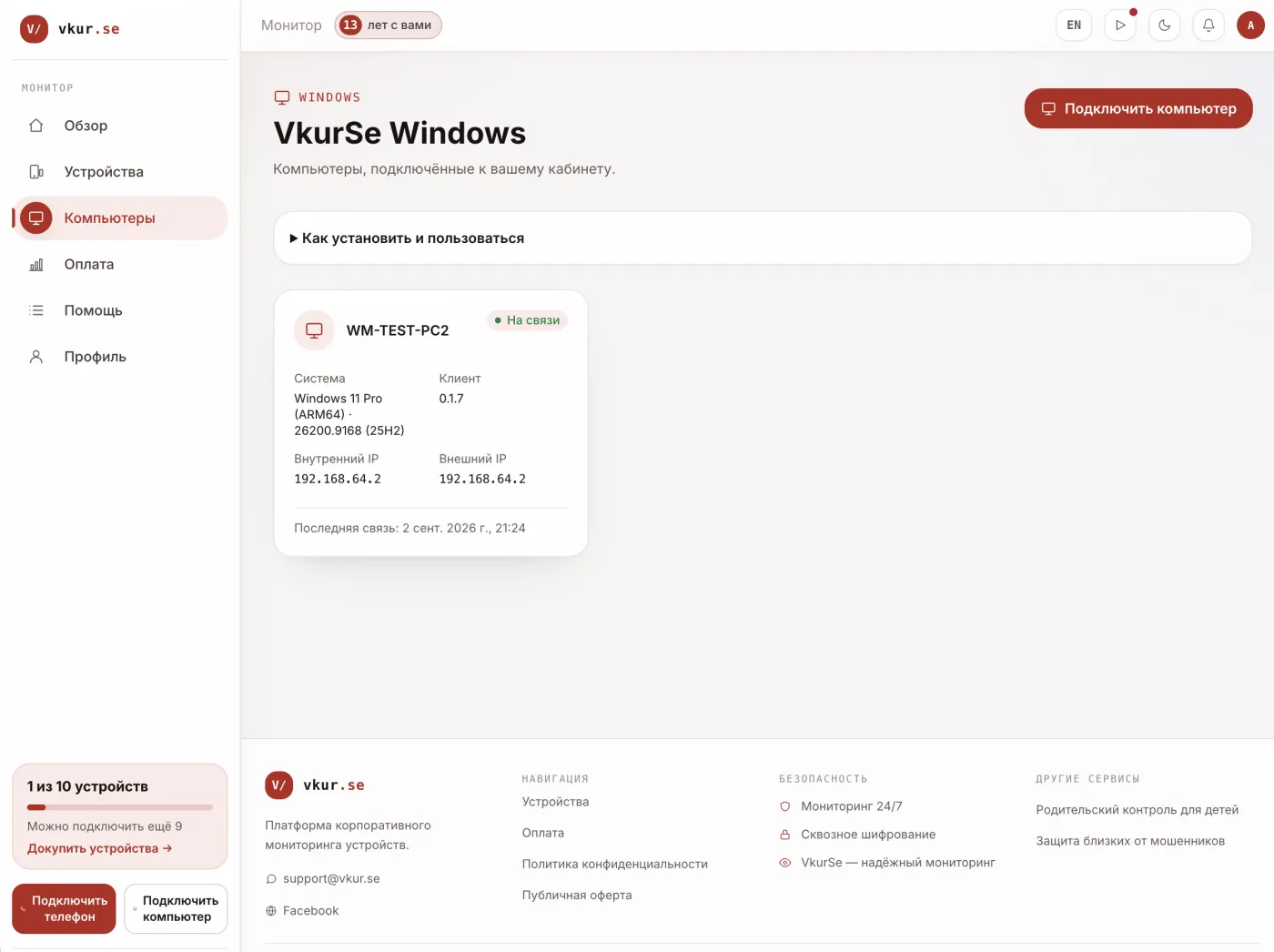
In VkurSe for Windows, screenshots are collected automatically and available in the dashboard with a day-by-day history, alongside app and website history. That's handy both for work-PC oversight (with employees notified) and for parental supervision of a home computer.
Where it's legal
Auto-screenshots are legal on your own devices, a child's device, and work PCs with employees notified. Secretly installing them on someone else's personal device is not allowed.
Frequently asked questions
Can screenshots be taken automatically on a schedule?
Yes, dedicated software takes shots at set intervals and on a schedule, filing them into a history.
Do screenshots strain the computer?
No, lightweight software runs in the background and sends shots in small batches.
Conclusion
Built-in tools are enough for a one-off shot, but a continuous screen log calls for auto-screenshot software. VkurSe for Windows collects shots into a convenient dashboard with a day-by-day history -- for work oversight or supervising a home PC, legally and transparently.

VkurSe for Windows
Screenshots, apps, websites, and computer activity in a single dashboard. Phones and PCs together. First 24 hours free.
Try it freeCreate your dashboard — the Windows installer will be in the “Computers” section