Recording a computer screen can be needed for various reasons: making a video tutorial, saving a webinar, showing a problem to support. And when it comes to monitoring, for example keeping an eye on a child's home PC or on work on a company computer, what matters is not one long video but a clear log of what happened on the screen during the day.
Let's go through the built-in screen recording tools in Windows, third-party programs and how to keep a history of screen activity without giant video files.
- Windows 10 and 11 have built-in screen recording via the Xbox Game Bar (Win+G).
- For advanced tasks, people use OBS Studio and other recording programs.
- Video takes up a lot of space; for activity monitoring, scheduled screenshots and a log of programs and sites are more convenient.
- Install monitoring on your own devices and do it honestly.
Built-in screen recording in Windows: Xbox Game Bar
The simplest way to record the screen without installing programs is the Xbox Game Bar. Press Win + G, a panel opens with a record button. You can record an app window with system sound and microphone. Finished clips are saved to "Videos → Captures". This method suits short recordings and tutorials.
How to record the screen with the Game Bar
- Press Win + G.
- In the "Capture" block, press the start recording button (or Win + Alt + R).
- Stop the recording with the same button, the file will appear in the "Videos → Captures" folder.
Screen recording programs
When you need quality settings, recording several sources or editing, people use separate programs. A free and powerful option is OBS Studio: flexible scenes, recording and streaming. There are also simpler paid editors with recording and trimming.
Activity monitoring: why video is not always convenient
Continuous screen video for a whole day means dozens of gigabytes and inconvenient viewing. If the task is not "make a clip" but understanding what was done at the computer, it is more effective to keep a log: scheduled screenshots plus a list of programs and sites with time.
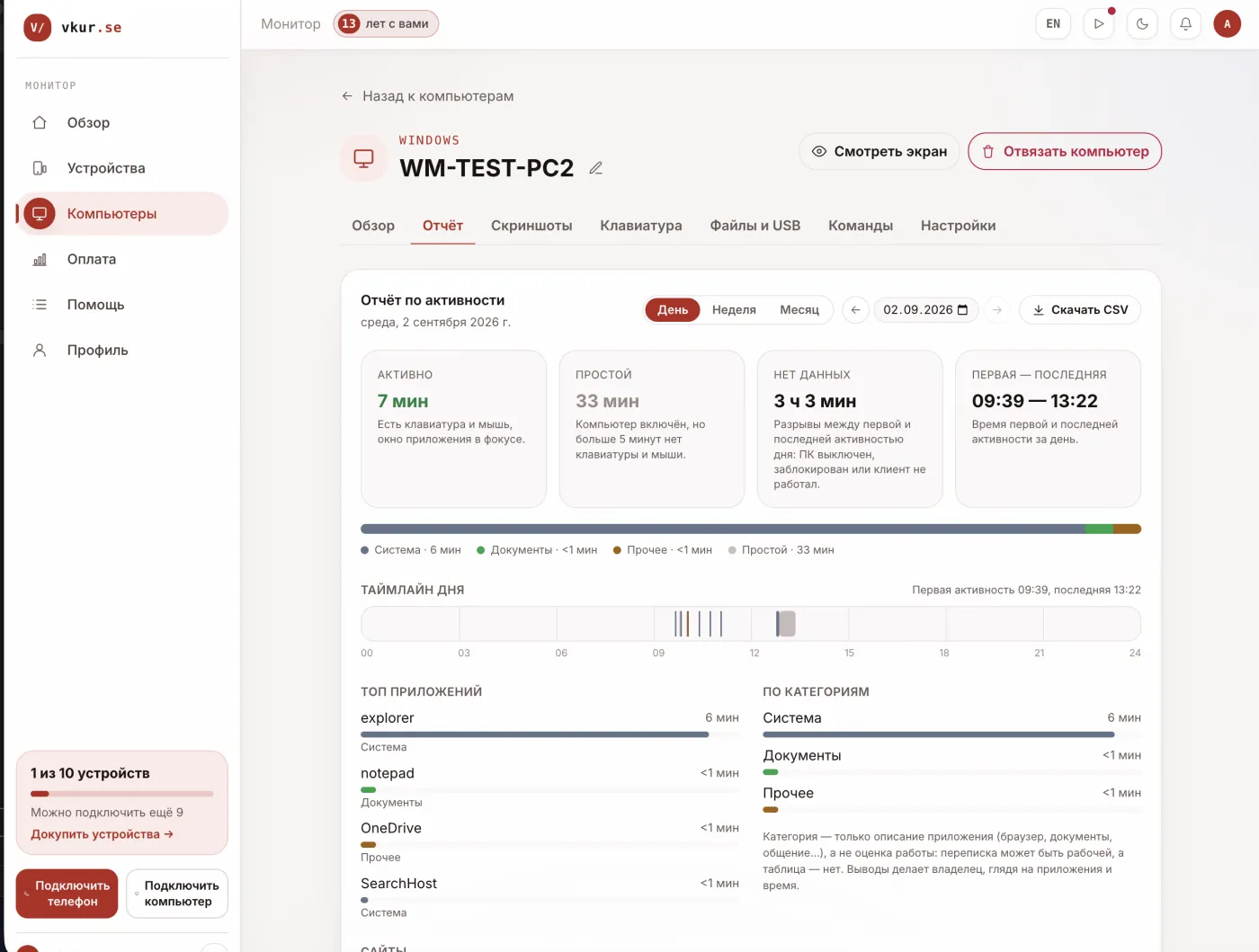
This is how VkurSe for Windows is built: instead of heavy video, you get in the dashboard screen screenshots with a history by day, and alongside them which programs were used and for how long, visited sites, activity and idle periods. This is compact and clear, handy both for parental oversight and for monitoring work PCs (with employees notified).
Frequently asked questions
How do I record the screen with sound?
In the Xbox Game Bar, turn on microphone recording in the panel settings; system sound is recorded by default. In OBS the audio sources are configured separately.
The Game Bar doesn't record the desktop, why?
Built-in recording is designed for app and game windows and may not capture the desktop itself or File Explorer. For such cases, use OBS or a monitoring program with screenshots.
What to choose for computer monitoring, video or screenshots?
For monitoring, scheduled screenshots and an activity log are more convenient: they take up little space and are easy to review, unlike hours-long video.
Conclusion
For a one-off screen recording the built-in Xbox Game Bar is enough, for complex tasks there is OBS. And if you need constant and compact monitoring of what happens on the computer, instead of heavy video use screenshots and an activity log, for example in VkurSe for Windows.
VkurSe for Windows
Screenshots, apps, websites and computer activity in one dashboard. Phones and PCs together. First day free.
Try it freeCreate your dashboard — the Windows installer will be in the “Computers” section